How To Stop A Dash Camera From Missing Crucial Footage: 10 Memory Card And Recording Checks
Prevent your dash camera from missing vital footage with 10 quick checks covering memory cards, loop recording, power supply, file errors and camera settings.
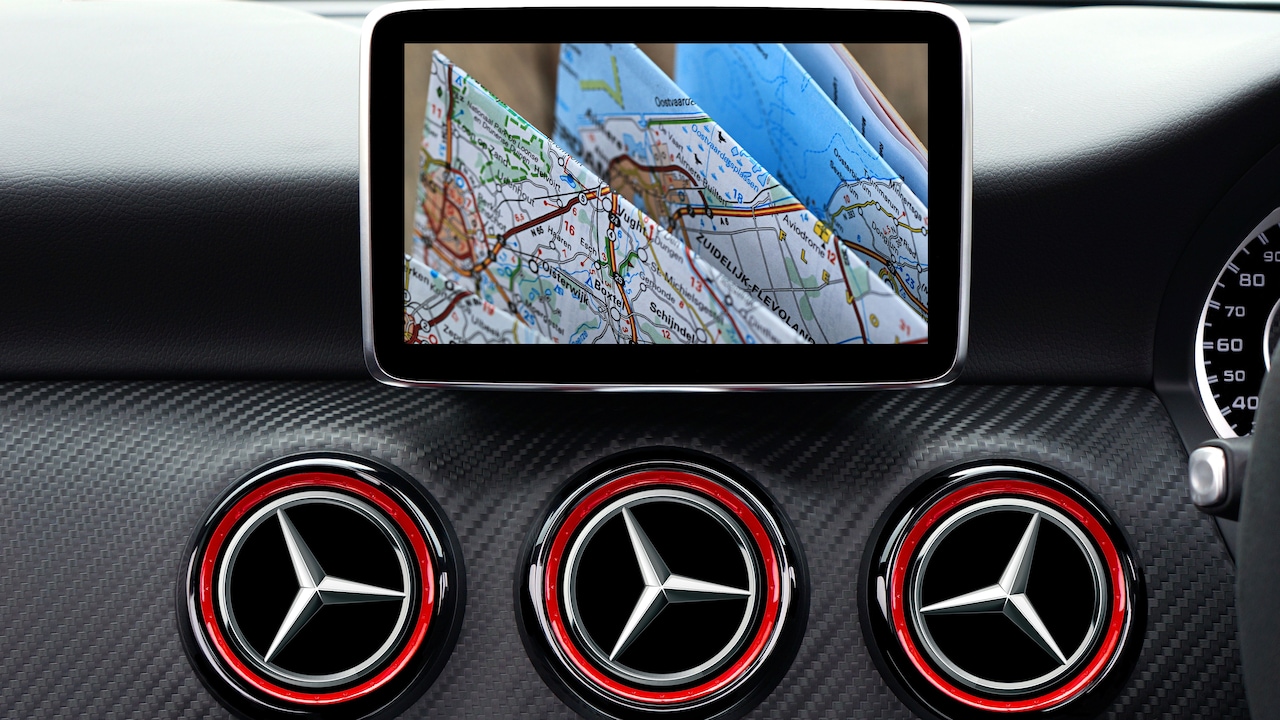
How To Stop A Dash Camera From Missing Crucial Footage: 10 Memory Card And Recording Checks
A dash camera often sits behind the windscreen without demanding much attention. It starts with the engine, records the road and replaces older clips when the memory card becomes full. That simple routine can create a dangerous sense of confidence. Imagine discovering a fresh dent after leaving a car outside a crowded market. The dash camera appears unharmed, so checking the recording should solve the mystery. Instead, the screen shows a memory error, a blank folder or footage from three weeks ago. The camera was present, but the evidence was not. This problem is surprisingly common. A dash camera works in harsh conditions. It faces summer heat, road vibrations, dust, frequent power cuts and endless writing cycles. The memory card also carries a heavy workload because it records continuously, often for several hours every day.
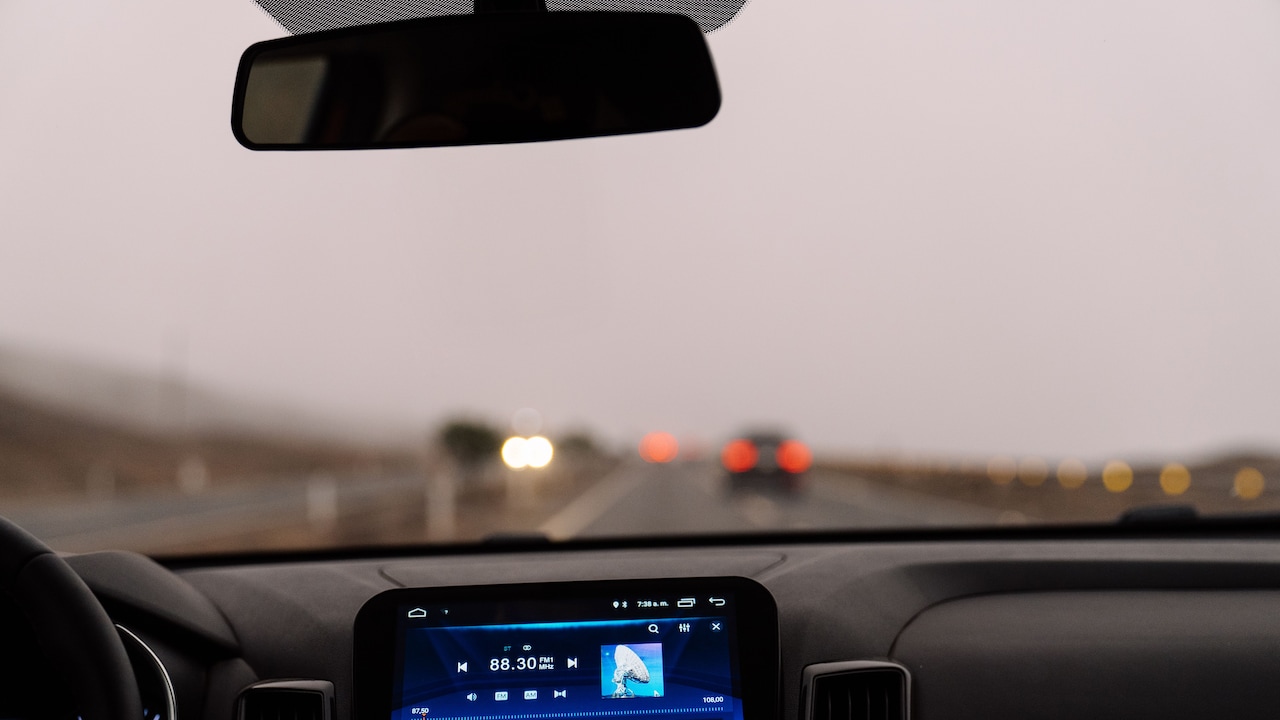
Dash Camera Not Recording? 10 Memory Card And Recording Checks
Photo Credit: Pexels
Fortunately, most recording failures provide warning signs before crucial footage disappears. Regular checks can reveal storage issues, loose connections and unsuitable settings. The following ten checks take little time, yet they can prevent a frustrating and expensive surprise.
10 Essential Checks To Keep Your Dash Camera Recording Reliably
1. Use A High-Endurance Memory Card
A regular memory card may work perfectly inside a phone or camera, but a dash camera places far greater pressure on it. The device writes and rewrites video continuously. A standard card can wear out quickly, especially during long daily commutes.
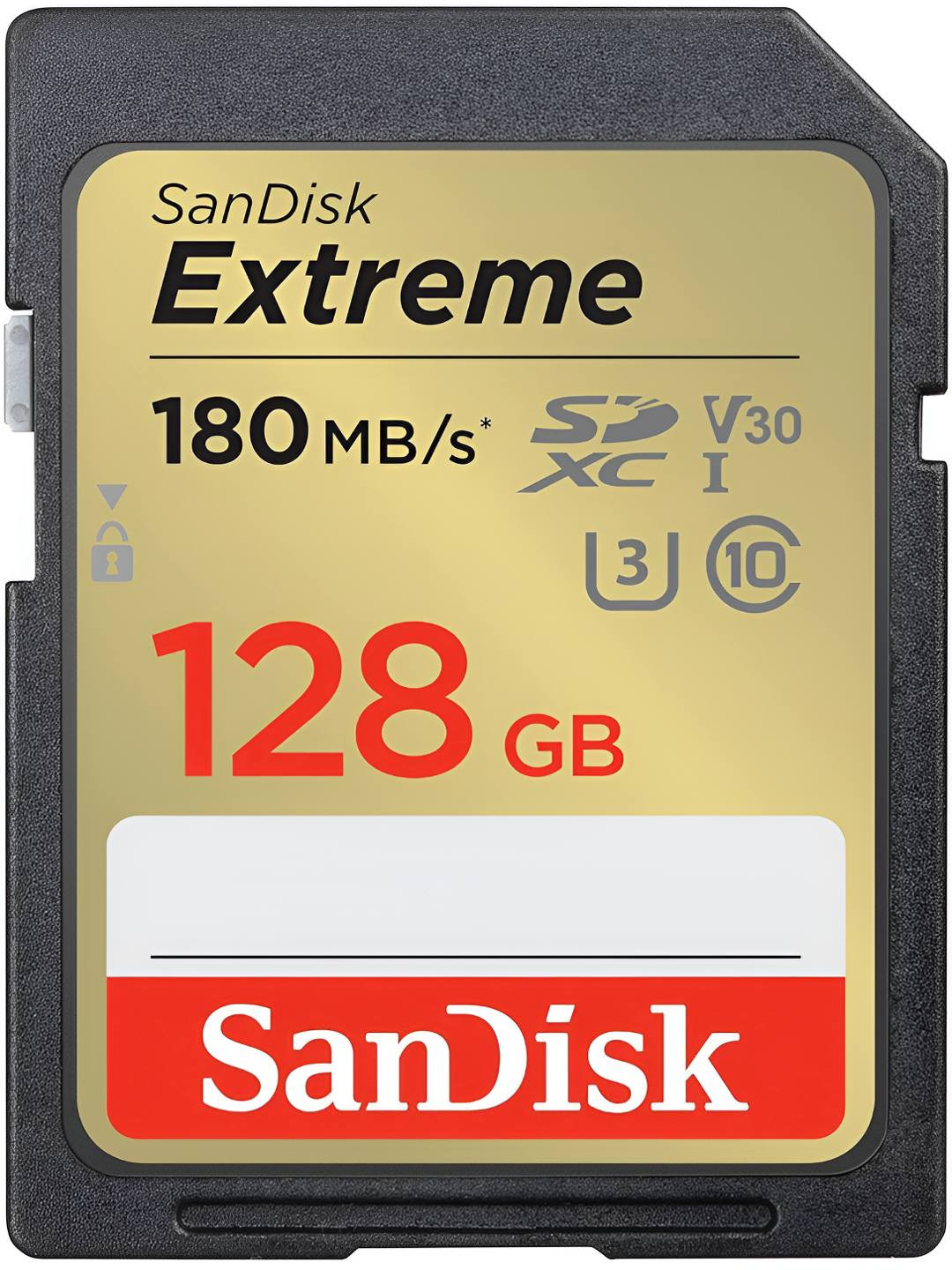
Choose a high-endurance microSD card designed for continuous recording. These cards tolerate repeated write cycles, temperature changes and vibration better than ordinary models. Check the dash camera manufacturer's recommended capacity and speed rating before buying one. A card that exceeds the supported storage limit may not work correctly, even if it fits into the slot.
Avoid suspiciously cheap cards sold without proper packaging or warranty. Counterfeit storage often displays a false capacity. A card labelled 128 GB may stop saving files after using only a small portion of that space. The missing footage may not become obvious until an incident occurs.
Buying from a trusted retailer can cost a little more, but the difference is usually modest. Spending ₹1,000 to ₹2,500 on reliable storage makes more sense than losing evidence during a costly insurance dispute.
2. Format The Card Inside The Dash Camera
A new memory card should not go straight from its packet into the camera without preparation. It needs formatting, preferably through the dash camera's own menu. This process creates the correct file system and folder structure for that particular device.
Formatting the card on a laptop may seem convenient, but computers offer several formats. Choosing the wrong one can lead to recording errors, corrupted files or a card that the camera refuses to recognise. The dash camera usually selects the safest format automatically.
Regular formatting also clears hidden fragments left behind by thousands of recording cycles. These fragments can gradually reduce performance, much like clutter filling an overstuffed kitchen drawer. The card may still look functional, yet new clips could fail to save properly.
Many manufacturers recommend formatting every two to four weeks. Frequent drivers may need to do it more often. Before formatting, save any important clips to another device because the process erases everything.
A monthly reminder can help. It takes less time than ordering tea at a roadside stop, but it keeps the storage system clean and ready for the next journey.
3. Check Whether Loop Recording Is Enabled
Loop recording allows a dash camera to continue filming after the memory card becomes full. It divides the journey into short clips, then replaces the oldest unlocked file with a new one. Without this feature, the camera may simply stop recording when storage runs out.
Open the recording settings and confirm that loop recording is active. Most cameras offer clip lengths of one, three or five minutes. Three-minute clips usually provide a sensible balance. They are easy to review, transfer and protect after an incident.
Longer files can become inconvenient. If power disconnects while a large video is being written, the entire clip may become corrupted. Very short clips, on the other hand, create hundreds of files and make searching for a specific moment more tedious.
Some users disable loop recording by mistake while exploring the settings. Others assume the camera will automatically overwrite everything. That is not always true.
After enabling the feature, allow the camera to record until the card is nearly full. Check whether new clips replace the oldest ordinary files. A simple test at home can prevent a nasty discovery after a real collision.
4. Clear Excess Locked And Emergency Files
Dash cameras often contain a G-sensor that detects sudden movement. During hard braking, sharp turns or impacts, the sensor locks the current clip so loop recording cannot overwrite it. This is useful during an accident, but an overly sensitive sensor can fill the card with protected files.
Potholes, speed breakers and rough parking ramps may trigger emergency recording. After a few weeks, the protected folder can become crowded with clips of completely ordinary journeys. Since the camera cannot delete these automatically, available recording space gradually shrinks.
Review the locked-file folder regularly. Save genuine incident footage elsewhere, then delete unnecessary clips. Also, check the G-sensor sensitivity. A medium or low setting often works better on uneven roads than the highest setting.
Do not switch the sensor off without considering the consequences. Automatic locking can preserve vital evidence when a driver cannot reach the camera after an impact. The goal is balance, not complete deactivation.
A camera that beeps repeatedly over every bump is not being extra cautious. It may be quietly hoarding hundreds of useless clips while leaving little room for the moment that truly matters.
Also Read: Safety For Every Ride: Explore Top 5 High Quality Dashcams For Bike Under ₹9,999
5. Review Footage Instead Of Trusting The Recording Light
A glowing red light or blinking icon suggests that the dash camera is recording. However, it does not guarantee that the saved footage is complete, clear or playable. The camera may appear normal while writing damaged files to the card.
Once a week, remove the memory card or connect the camera to its mobile application. Open several clips from different journeys. Check the beginning, middle and end of each file. Look for freezing, missing audio, strange colours or sudden jumps in time.
Pay particular attention to night recordings. Number plates, signals and road markings should remain reasonably visible under headlights. A dirty windscreen or badly positioned lens can turn an otherwise working camera into a recorder of blurred reflections.
Check the date and time as well. Incorrect timestamps can complicate insurance claims or police reports. Some cameras reset their clock after losing power, especially when the internal battery or capacitor becomes weak.
Treat footage review like checking tyre pressure. It may feel unnecessary when everything seems fine, but routine inspection catches small problems before they become expensive ones.
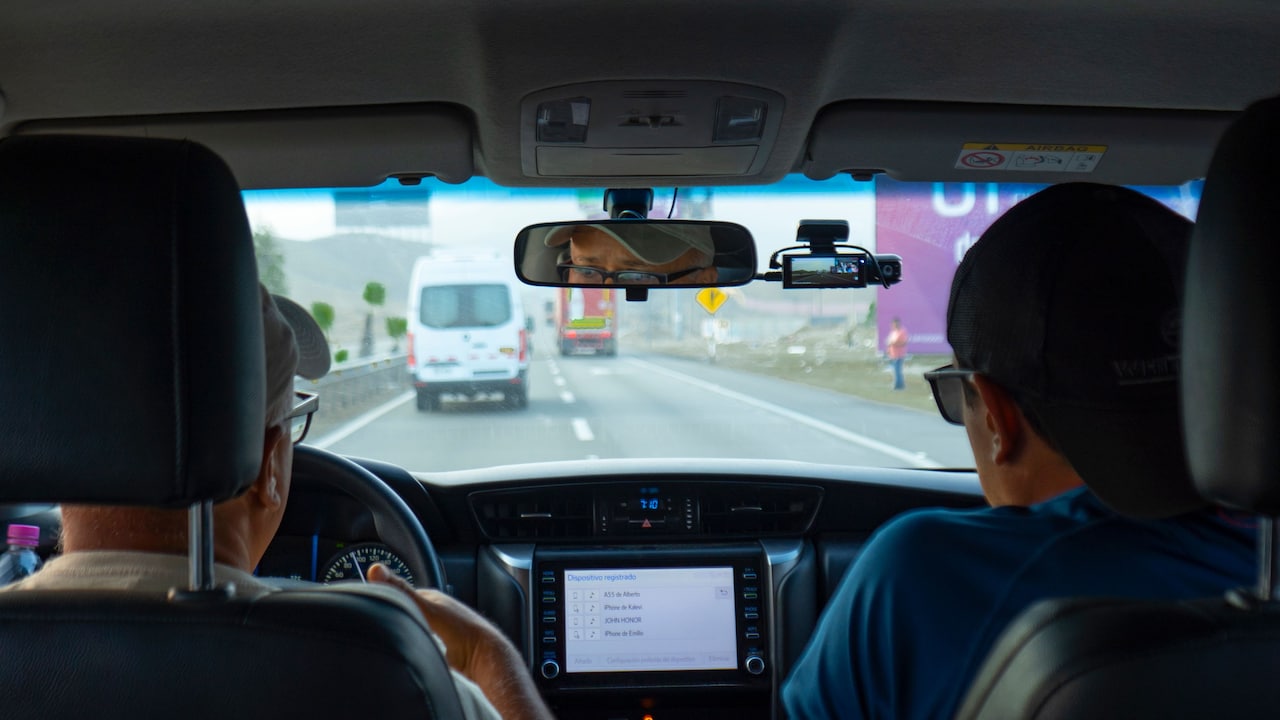
Dash Camera Not Recording? 10 Memory Card And Recording Checks
Photo Credit: Pexels
6. Confirm That Both Cameras Are Recording
Dual-channel dash cameras record the front and rear of the vehicle. Some systems also include an interior camera. More coverage brings better evidence, but it also creates more opportunities for unnoticed failure.
Open a recent journey and confirm that every connected camera produced a file. The front unit may record normally while the rear camera loses power because of a loose cable. A damaged connector near the boot can also interrupt recording whenever the lid opens or closes.
Watch for split-screen indicators or channel icons on the display. If one symbol disappears, inspect the cable connections at both ends. Avoid forcing plugs into sockets because some rear-camera connectors look similar but align in only one direction.
Storage requirements rise when two or three cameras record together. A 64 GB card that once held several hours of front footage may fill much faster after adding a rear camera. Higher resolutions reduce recording time even further.
Test the entire system after servicing, cleaning the interior or moving luggage. One accidental tug can loosen a hidden wire. The missing rear clip may not matter during an ordinary drive, but it could be crucial during a hit-and-run.
7. Inspect The Power Supply And Shutdown Behaviour
A dash camera cannot save footage reliably without stable power. Loose charging plugs, weak adapters and worn cables may cause repeated restarts. Each sudden shutdown creates a risk that the current video file will not close properly.
Start the engine and watch the camera. It should switch on without cycling through its logo several times. Gently move the power cable near the socket and camera port. Any flickering or restarting suggests a weak connection.
Check what happens when the engine turns off. Cameras with supercapacitors or small internal batteries need enough reserve power to finish saving the final clip. If the screen goes black instantly and the last file disappears, the backup component may be failing.
Avoid using extremely cheap multi-port adapters for several accessories. A phone charger, air purifier and dash camera can overload a poor-quality socket adapter. Voltage fluctuations may also create random gaps in footage.
For parking mode, use a compatible hardwire kit with low-voltage protection. Improvised wiring can drain the vehicle battery or damage the camera. Professional installation may cost a few thousand rupees, but it offers far more peace of mind than a tangled collection of bargain cables.
8. Set The Correct Resolution And Bitrate
The highest available resolution may sound like the best choice, but it is not always the most reliable one. Ultra-high-resolution recording creates large files, increases heat and fills the memory card quickly. Older or slower cards may struggle to keep up.
Choose a resolution that captures useful details without overwhelming the system. For many drivers, 1080p or 1440p offers clear footage and manageable file sizes. A well-positioned 1440p camera can often provide more useful evidence than a poorly maintained 4K model.
Check whether the camera offers bitrate settings. A higher bitrate usually improves detail, but it also consumes more storage. Use the manufacturer's recommended setting unless number plates appear excessively blurred.
After changing the resolution, record a daytime and night-time journey. Compare moving vehicles, street signs and number plates. Do not judge quality only while the vehicle is parked because motion creates a tougher test.
Also, monitor the camera temperature. Warmth is normal, especially during recording, but repeated overheating warnings require attention. Lowering the resolution may help. So can moving the camera slightly away from a dark windscreen strip that absorbs extra heat under strong sunlight.
9. Look For Error Messages And Warning Sounds
Dash cameras are easy to ignore because they often communicate through tiny icons and brief beeps. A single warning may disappear before the driver understands it. Muting every sound can make matters worse because storage failures may then continue silently.
Learn what the camera's alerts mean. A crossed-out card icon may signal missing storage. Repeated beeps may indicate a formatting error, while a frozen recording timer could suggest that video capture has stopped.
Check the screen shortly after starting the vehicle. The recording timer should move, and the storage symbol should appear normal. On screenless models, understand the meaning of each indicator light. The manual or official application usually explains the light patterns.
Do not dismiss messages such as “slow card”, “card error” or “please format”. Restarting the camera may temporarily clear the warning, but it does not solve a failing memory card.
Some drivers cover the screen or disable alerts because the lights feel distracting at night. Reducing brightness is safer than blocking all feedback. A quiet camera may look neat on the windscreen, yet silence is not reassuring when the device has stopped recording kilometres ago.
10. Replace The Memory Card Before It Fails Completely
Memory cards do not last forever. Even high-endurance models eventually wear out after countless recording and rewriting cycles. The failure may begin with occasional corrupted clips, slow playback or unexplained recording gaps.
Keep track of the card's age and usage. A vehicle driven for several hours every day will wear out storage faster than one used only at weekends. Replacing the card every one to three years can be a sensible precaution, depending on recording quality, climate and driving frequency.
Do not wait for complete failure. If formatting errors return repeatedly, replace the card even if it still records sometimes. Unreliable storage is more dangerous than obviously broken storage because it creates false confidence.
Before discarding an old card, copy important files and erase personal footage securely. Dash camera recordings can reveal home locations, daily routes and conversations inside the vehicle.
Keep a compatible spare card in a protective case. During a long road trip, a backup can restore recording within minutes. Just remember to format it inside the camera first.
A memory card is a small part of the system, but it carries the entire burden of preserving the evidence.
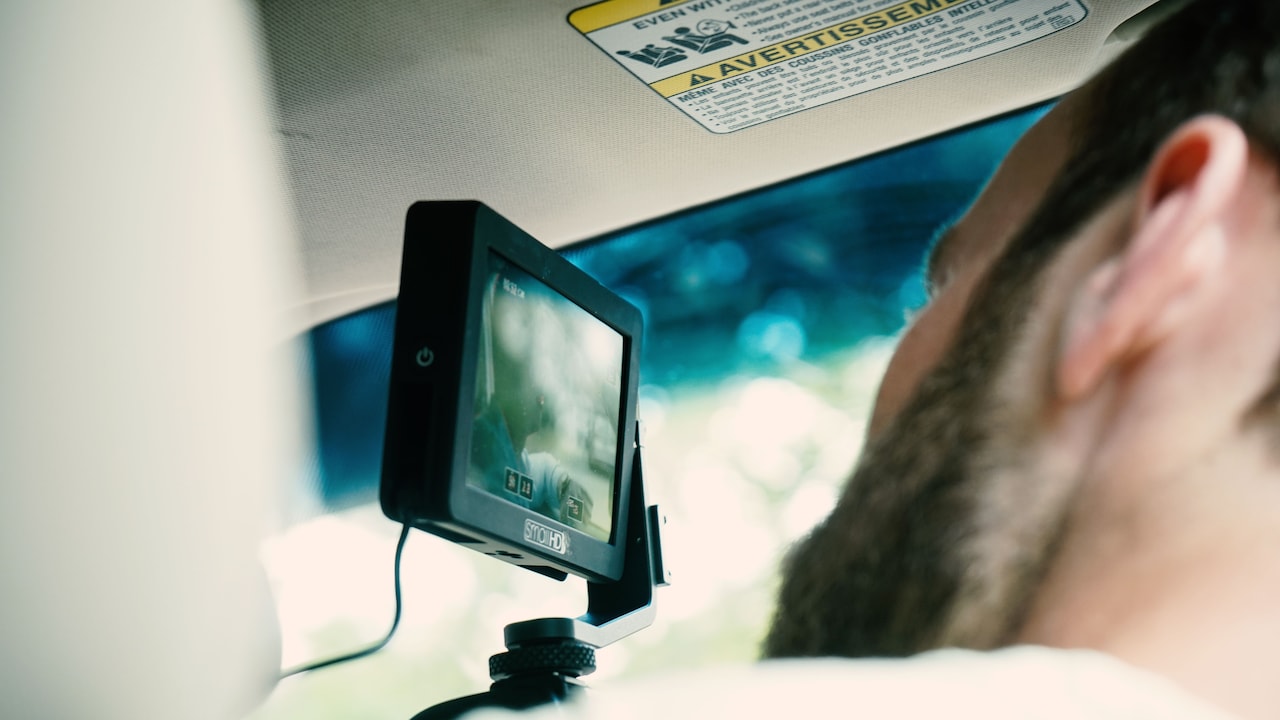
Dash Camera Not Recording? 10 Memory Card And Recording Checks
Photo Credit: Pexels
Products Related To This Article
1. Qubo Car Dashcam [New Launch] Pro 2K Front + Rear by Hero Group
2. Dylect® Sense 4K Max 2 Channel Dash Cam with Sony STARVIS 2
3. Hayden X1 Car Dash Camera 4K QHD 1440p Metal Body Front
4. Qubo Dashcam Pro 4K [2026 Edition] | True 4K-Sony STARVIS
5. CP PLUS Dash Cam for Car CP-F28B | Dual Channel Dashcam
6. Nextro X900 TriVision Dashcam, 4K Front + 1K Rear + 1K Cabin Triple Channel
7. WOLFBOX X5 Duo Dual Dash Cam for Car | 4K Front + 2.5K Rear Recording with 8MP STARVIS2 IMX678/IMX675
A dash camera should offer reassurance, not merely decorate the windscreen with blinking lights. Reliable recording depends on several small habits: choosing durable storage, formatting it correctly, reviewing footage and paying attention to warnings.
None of these checks requires technical expertise. Most take only a few minutes, and several can become part of a simple monthly routine. Format the card, review a few clips, clear unnecessary locked files and inspect the power connection. A deeper check before long journeys can catch loose rear-camera cables or ageing storage.
The most important lesson is simple: never assume that a visible camera is a working camera. Evidence only matters when the file opens, the image is clear and the full incident has been captured.
A little maintenance today can save hours of argument tomorrow. When traffic becomes chaotic, a parking dispute turns heated or an insurance claim depends on one crucial moment, a properly checked dash camera can become the calmest and most reliable witness in the vehicle.
(Disclaimer: This article may include references to or features of products and services made available through affiliate marketing campaigns. NDTV Convergence Limited (“NDTV”) strives to maintain editorial independence while participating in such campaigns. NDTV does not assume responsibility for the performance or claims of any featured products or services.)