How To Reduce Bluetooth Earbud Disconnects: 10 Fixes For Interference, Range And Device Settings
Fix Bluetooth earbud disconnects with 10 practical solutions for interference, limited range, low battery, pairing errors, software updates and device settings.
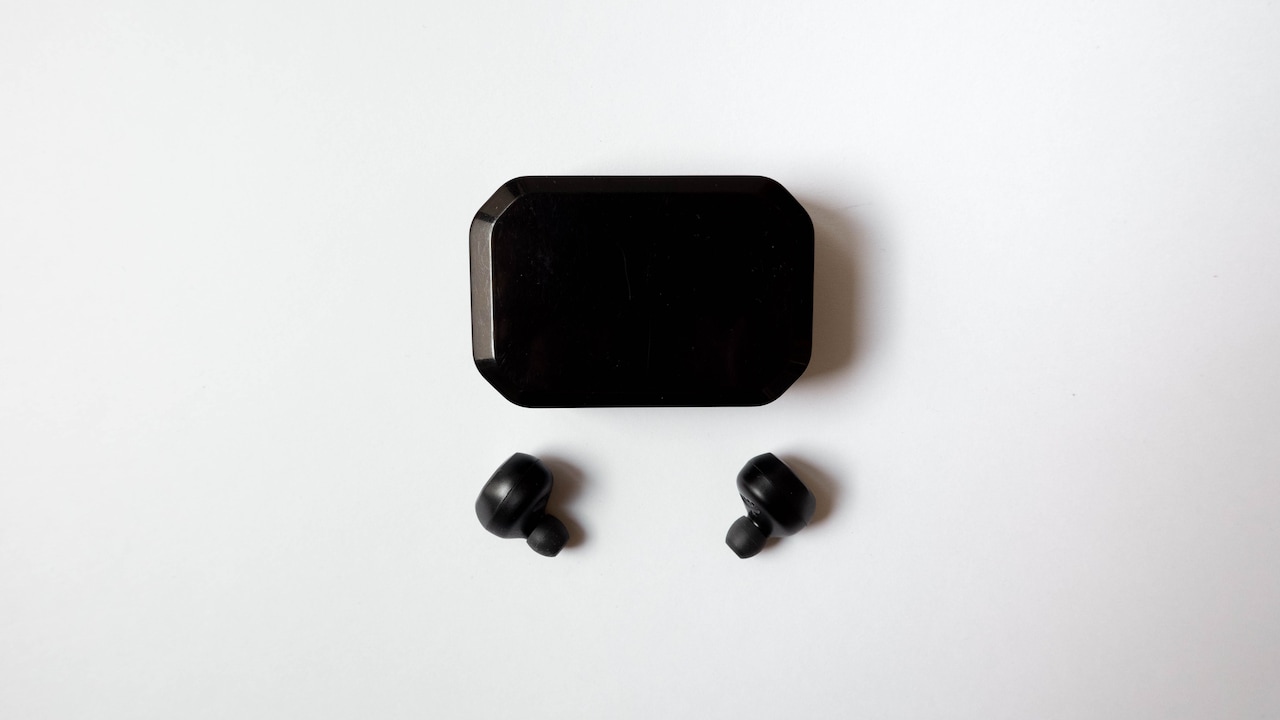
10 Ways To Stop Bluetooth Earbuds From Disconnecting Frequently
Wireless earbuds have become part of everyday life. They sit in pockets during metro journeys, accompany evening walks, handle office calls and provide a little private entertainment while the rest of the household watches smart television. Their convenience feels almost magical until the audio starts breaking up. Bluetooth disconnects can appear without warning. Music may pause for a second, one earbud may lose sound, or the connection may disappear completely. Sometimes the problem happens only outdoors. In other cases, it begins when a laptop, smartwatch or another phone enters the picture. There is rarely one universal culprit. Bluetooth depends on radio signals, software, battery power and communication between several devices. A weakness in any of these areas can create trouble. Before resetting everything or spending ₹3,000 on another pair, try these 10 fixes. Most require only a few minutes, and several can improve connection stability immediately.
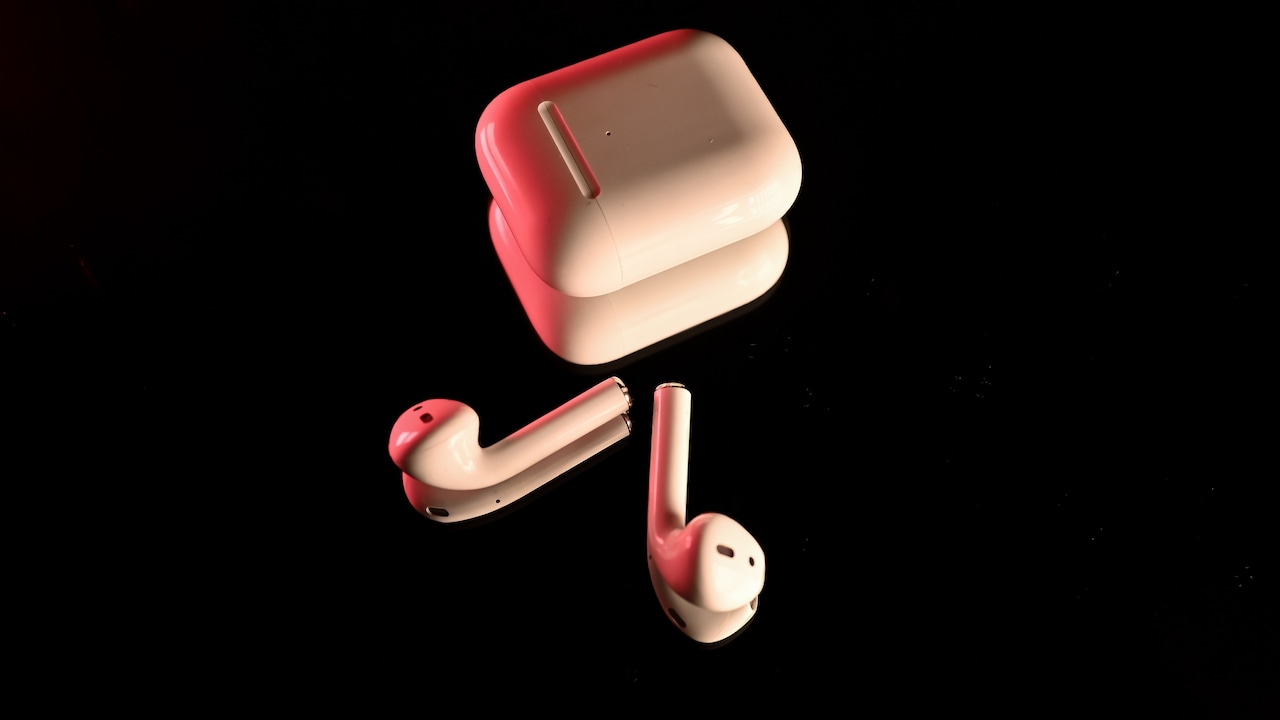
10 Ways To Stop Bluetooth Earbuds From Disconnecting Frequently; Photo Credit: Pexels
10 Practical Fixes To Stop Bluetooth Earbuds From Disconnecting
1. Keep The Phone And Earbuds Within A Sensible Range
Bluetooth may be wireless, but it is not limitless. Most earbuds work comfortably when the connected phone, tablet or laptop stays nearby. Problems often begin when walls, furniture or several metres of distance come between the two devices.
A phone left on a bedroom table may struggle to maintain a solid connection when the listener walks into the kitchen. Thick concrete walls can make matters worse. Even keeping the handset at the opposite end of a large office floor can lead to stuttering audio.
The simplest test is wonderfully low-tech: move closer.
Keep the connected device in the same room and check whether the interruptions disappear. While walking outside, carry the phone in a pocket rather than leaving it inside a backpack surrounded by other objects.
Bluetooth range figures advertised by manufacturers usually assume favourable conditions with few obstacles. Real homes, offices and crowded public places are rather less polite.
If disconnects consistently happen only at greater distances, the earbuds may be working perfectly. The environment simply demands a shorter operating range.
Also Read: Top 5 Wireless Earbuds Worth Adding To Your Cart Under ₹3,000
2. Reduce Nearby Wireless Interference
Bluetooth shares busy wireless territory with plenty of other gadgets. Wi-Fi routers, wireless keyboards, smartwatches, gaming controllers and even other Bluetooth accessories can compete for space in the 2.4GHz frequency range.
Usually, modern devices handle this traffic without drama. Problems can appear, however, when several wireless products operate close together.
Picture a crowded café. A phone connects to earbuds while dozens of nearby customers use laptops, smartwatches, wireless mice and personal hotspots. The air may look empty, but the radio spectrum is having a rather hectic afternoon.
If the earbuds keep dropping out in one particular location, interference deserves suspicion.
Move away from Wi-Fi routers or clusters of wireless equipment and test the connection again. At home, avoid placing the phone directly beside a router, streaming box or other wireless transmitter.
Switching unnecessary Bluetooth accessories off can also help.
Interference does not always cause a full disconnect. Crackling, brief pauses, and sound cutting between the left and right earbuds can be early clues that the wireless environment has become too crowded.
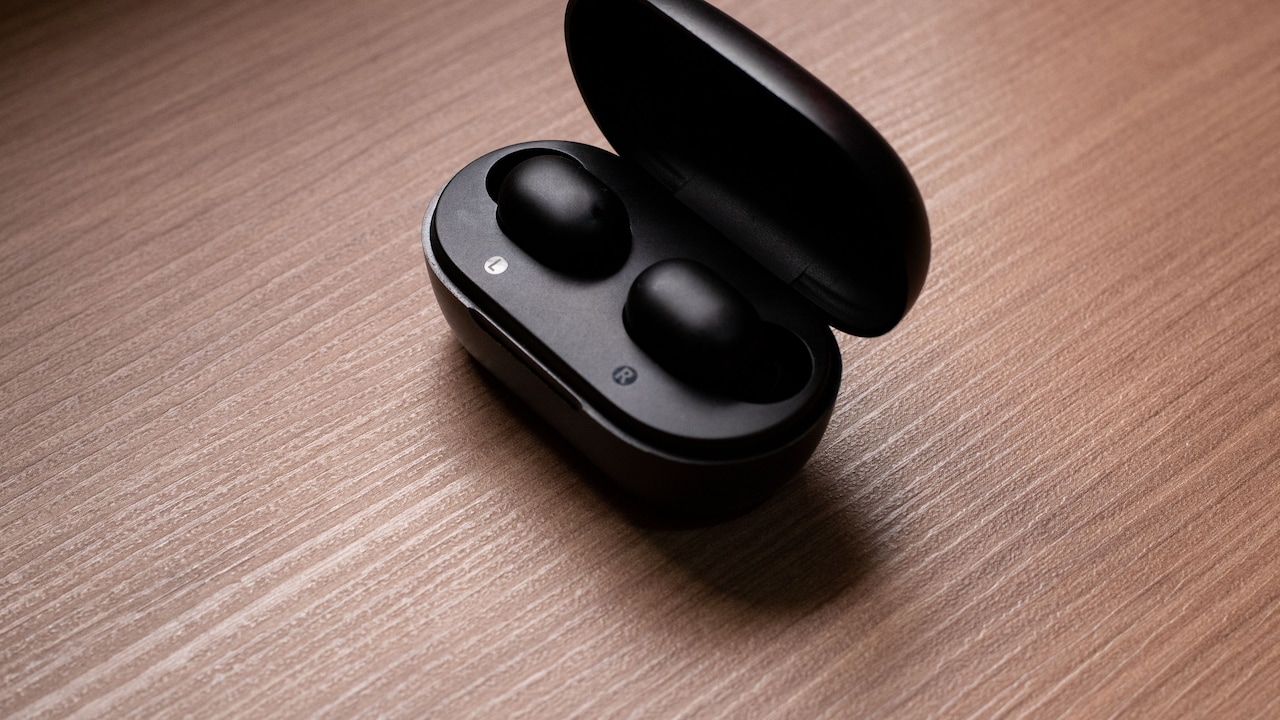
10 Ways To Stop Bluetooth Earbuds From Disconnecting Frequently; Photo Credit: Pexels
3. Remove Physical Barriers Between Devices
Bluetooth signals dislike obstacles, particularly dense ones. Walls are obvious barriers, but the human body can also weaken radio signals more than many people expect.
This explains a curious problem sometimes noticed during walks. Earbuds may work perfectly while the phone sits in a shirt pocket, yet begin stuttering when the handset moves into a trouser pocket on the opposite side of the body.
The signal now has more material to travel through.
Try carrying the phone closer to the side where the earbud's primary Bluetooth receiver sits. With some models, one earbud manages the main connection and passes audio to the other.
Metal objects can also create trouble. A phone squeezed into a bag beside a metal water bottle, laptop and power bank may experience poorer connectivity than the same handset sitting freely on a desk.
The solution does not require rearranging an entire lifestyle. Simply experiment with placement.
If moving the phone from a deep bag to an outer pocket immediately improves the audio, the mystery has probably been solved without changing a single setting.
4. Disconnect Unnecessary Paired Devices
Modern phones can remember a surprisingly long list of Bluetooth accessories. Cars, speakers, smartwatches, old headphones and forgotten fitness bands often remain saved for months or years.
Normally, stored pairings cause no harm. Complications can arise when earbuds support multipoint connections or automatically attempt to reconnect with previously used devices.
Imagine joining a work call on a laptop while the same earbuds also recognise a nearby phone. A notification arrives, the phone tries to claim the connection, and suddenly the meeting sounds as though someone has pulled the plug.
Open the Bluetooth settings and check which devices currently connect to the earbuds.
Disconnect equipment that does not need an active link. If the earbuds regularly jump between two devices, temporarily disable Bluetooth on the secondary one and see whether stability improves.
Older or unused pairings can also be removed from the saved-device list.
This fix becomes especially useful in households where several phones or tablets have previously connected to the same earbuds. Automatic reconnection feels clever when it works. When it does not, it can turn a simple pair of earbuds into surprisingly indecisive little gadgets.
5. Forget The Earbuds And Pair Them Again
Bluetooth pairing creates stored connection information on both devices. Occasionally, those records become unreliable after software updates, interrupted pairing attempts or repeated switching between phones and laptops.
Removing the earbuds and pairing them again gives the connection a clean start.
Open the Bluetooth menu on the phone or computer, select the earbuds and choose the option to forget or remove the device. Then place the earbuds back into pairing mode and connect them again as though they were new.
Before doing this, check whether the earbuds require a special reset sequence. Some models need both earbuds inside the charging case before pairing begins correctly.
Fresh pairing can solve several irritating symptoms, including repeated connection failures, one-sided audio and earbuds that appear connected despite producing no sound.
It is a simple fix, yet easy to overlook because the existing pairing looks perfectly normal on screen.
Think of it as exchanging a slightly muddled introduction for a proper handshake. When Bluetooth devices stop recognising each other reliably, starting the relationship again often works better than repeatedly tapping the Connect button.
6. Restart The Phone And Earbuds
Restarting devices sounds almost too obvious, which is probably why many people skip it. Yet temporary software glitches frequently affect wireless connections.
Phones constantly manage background apps, mobile networks, Wi-Fi, Bluetooth services and power-saving processes. After days of continuous use, one of those services can behave unexpectedly.
Switch the earbuds off completely, or place them in their charging case until they power down. Restart the connected phone, tablet or laptop as well. Once both devices return, reconnect them and test the audio.
This clears temporary processes and forces the Bluetooth system to initialise again.
A restart becomes particularly worthwhile if disconnects begin suddenly after the earbuds have worked normally for weeks. There may be no hardware problem at all.
Avoid confusing a restart with a factory reset. A restart should not erase personal data or saved settings.
It takes only a moment and carries little risk, making it one of the best early troubleshooting steps. Sometimes advanced technology needs the same treatment as an old television remote: switch it off, give it a moment and allow it to reconsider its behaviour.
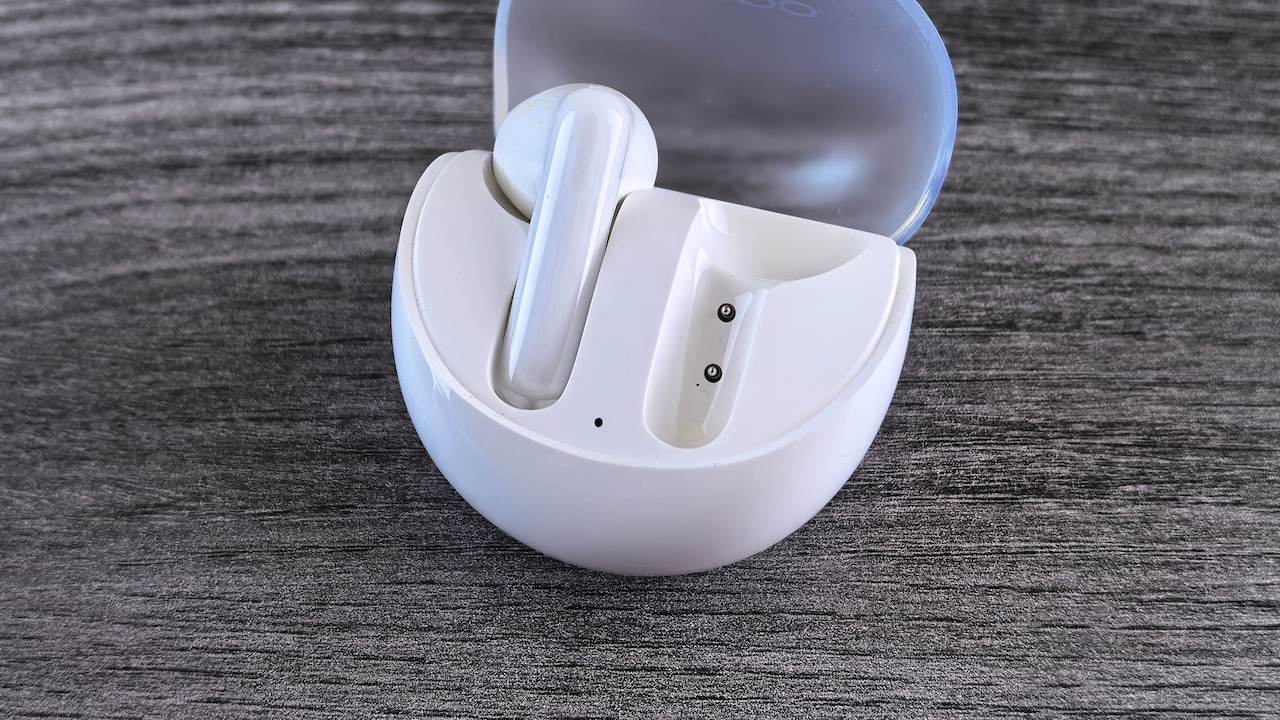
10 Ways To Stop Bluetooth Earbuds From Disconnecting Frequently; Photo Credit: Pexels
7. Check Battery Levels On Both Earbuds
Low battery power can affect more than listening time. Some earbuds become less stable as their charge approaches empty, particularly if one side drains faster than the other.
Check the battery percentage of both earbuds rather than relying only on the charging case indicator. Many phones display separate levels for the left earbud, right earbud and case.
Uneven charging often begins with something surprisingly mundane. Dirt or dust may prevent one earbud from making proper contact with the charging pins. The owner believes both buds charged overnight, but one quietly starts the morning at 18%.
Clean the charging contacts gently with a dry, soft cloth and make sure each earbud sits correctly inside the case.
The case itself also needs enough power to recharge them.
If disconnects regularly appear after an hour or two of listening but vanish after a full charge, battery condition deserves attention. Older earbuds with worn batteries may show inaccurate percentages or shut down unexpectedly.
Before assuming Bluetooth interference has struck again, check whether the troublesome earbud is simply running out of energy halfway through a podcast.
8. Update The Phone And Earbud Firmware
Wireless problems sometimes come from software rather than radio interference. Phone operating systems contain Bluetooth drivers and compatibility improvements, while many premium earbuds receive firmware updates through their companion apps.
Manufacturers may release updates to fix connection drops, improve multipoint behaviour or resolve compatibility problems with newer phones.
Check the phone's software update section and install any stable update that is available. For earbuds that use a companion app, open the official app and look for firmware information.
Keep both earbuds adequately charged while updating. Interrupting a firmware installation midway can create bigger headaches than a few seconds of stuttering music.
Problems can also begin immediately after a major phone update. In such cases, restarting the phone and pairing the earbuds again may help while later software patches improve compatibility.
Firmware updates will not repair damaged hardware, but they can solve strange behaviour that appears without an obvious physical cause.
Wireless accessories depend heavily on software behind the scenes. Keeping that software current is rather like servicing a scooter: nothing looks different afterwards, but everything tends to behave more smoothly.
9. Review Battery Saver And Background Settings
Aggressive power-saving features can interfere with Bluetooth-related apps and services, especially on phones configured to restrict background activity.
Suppose the earbuds work perfectly while a music app remains open, but begin disconnecting after the screen locks. That pattern may point towards power management rather than poor Bluetooth range.
Check whether Battery Saver or an extreme power-saving mode is active. Temporarily disable it and test the earbuds again.
Also review the battery settings for the music, calling or earbud companion app. If the phone heavily restricts background activity, allowing normal background operation may improve reliability.
That does not mean every app deserves unrestricted access. The aim is simply to test whether power optimisation causes the problem.
Some earbuds also use companion apps for features such as automatic device switching, equaliser settings or firmware communication. Closing or restricting those apps can occasionally produce unexpected behaviour.
Battery-saving tools help phones survive long days away from chargers, but overenthusiastic optimisation can become counterproductive. Saving 3% battery feels less impressive when a favourite playlist turns into an accidental remix of silence and half-second audio fragments.
10. Reset Network Settings Or The Earbuds As A Final Step
If ordinary fixes fail, a deeper reset may clear persistent Bluetooth configuration problems.
Start with the earbuds. Most models offer a factory reset procedure using the charging case button, touch controls or companion app. The exact method varies, so follow the manufacturer's instructions carefully.
A factory reset removes stored device connections and returns the earbuds to their original configuration. Pair them again afterwards and test the connection before changing additional settings.
Phones also provide network reset options. Depending on the operating system, this may reset Bluetooth, Wi-Fi and mobile network settings together.
Use this option thoughtfully. Saved Wi-Fi networks and other connection preferences may disappear, which means passwords and settings may need to be entered again.
Network resets make the most sense when several Bluetooth accessories experience similar problems with the same phone. If only one pair of earbuds misbehaves while every other accessory works perfectly, the earbuds themselves may be the stronger suspect.
When disconnects continue after resets, updates and testing with another phone, hardware damage or battery wear may finally justify repair or replacement.
Products Related To This Article
1. boAt 2026 Launch Airdopes Joy v2, 35H Battery, Pocketable Design
2. Noise ALT Buds, 35dB ANC, Spatial Audio, 45Hrs Playtime, App Support
3. Mivi DuoPods Marathon Earbuds Wireless
4. Philips TAT1269 Bluetooth Truly Wireless In-Ear Earbuds with mic
5. HAMMER Airflow Neo Earbuds with 80H Playtime
6. OnePlus Nord Buds 3r TWS Earbuds up to 54 Hours Playback
7. Samsung Galaxy Buds4 Pro (Black) in-Ear Wireless Earbuds with Hi-Fi Audio
Bluetooth earbud disconnects can feel unpredictable, but most follow a fairly logical trail. Distance, crowded wireless environments, physical barriers, competing devices, low batteries and troublesome settings account for many everyday problems.
Start with the easy fixes. Move the phone closer, reduce interference, charge everything properly and restart both devices. If the issue remains, refresh the pairing, update the software and investigate power-saving settings. Resets should come later, not as the opening move.
Testing the earbuds with another phone can also reveal whether the problem belongs to the earbuds or the original device.
A reliable Bluetooth connection should fade into the background. Music should simply play, calls should continue, and a morning commute should not involve repeatedly opening the Bluetooth menu like a technician on emergency duty. A few sensible adjustments can usually return wireless earbuds to exactly that pleasantly uneventful state.
(Disclaimer: This article may include references to or features of products and services made available through affiliate marketing campaigns. NDTV Convergence Limited (“NDTV”) strives to maintain editorial independence while participating in such campaigns. NDTV does not assume responsibility for the performance or claims of any featured products or services.)