Is A Faulty Touchpad Always To Blame For Missed Gestures? 10 Laptop Input Myths Explained
A touchpad that misses swipes, clicks or gestures may not need replacing. Discover ten common laptop input myths and the practical fixes that can restore smooth, accurate control.

Discover myths related to faulty laptop touchpads
A touchpad often behaves perfectly until the exact moment it matters. The pointer freezes during a presentation, a two-finger scroll turns into an accidental zoom, or a gentle tap refuses to register while an impatient queue forms behind the laptop. The immediate conclusion feels obvious: the touchpad must be faulty. That conclusion can lead to an unnecessary repair bill. Modern touchpads rely on a combination of hardware, drivers, operating-system settings, power management and clean physical contact. A problem in any one of these areas can make the entire input surface appear damaged. Even sweaty fingertips after a humid commute can affect accuracy.
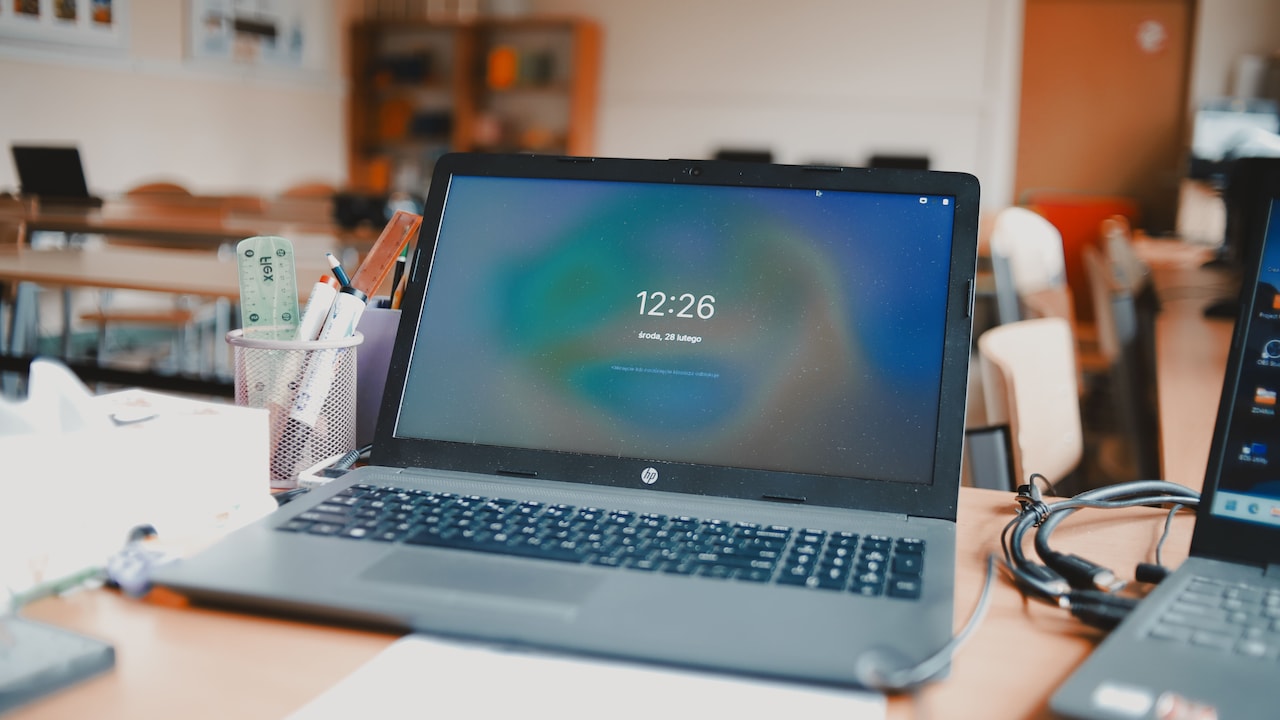
Laptop myths about a faulty touchpad
Photo Credit: Pexels
The good news is that many missed gestures have simple explanations. A restart, sensitivity adjustment or driver update may solve what looked like a serious hardware failure. Understanding the following myths can help you troubleshoot logically, avoid panic and recognise when professional repair really is necessary.
Also Read: Top 5 Laptops for Students With Long Battery Life That Are Not Heavy - Acer, Lenovo To HP
10 Laptop Touchpad Myths That Could Be Misleading You
1. Myth: Missed Gestures Always Mean The Touchpad Is Faulty
A touchpad that ignores a three-finger swipe or responds late to scrolling isn't necessarily defective. Gestures depend on software interpreting several contact points at once. If the relevant setting gets disabled, the laptop may still move the pointer normally while refusing to recognise more complex actions.
Start by checking the touchpad section in the operating system's settings. Confirm that tapping, two-finger scrolling, pinch-to-zoom and multi-finger shortcuts remain enabled. A system update, new user profile or accidental keyboard shortcut can change these preferences without much warning.
Temporary software glitches can also interfere with input. Save your work and restart the laptop before assuming the worst. This simple step reloads the touchpad service and clears minor conflicts.
Test basic movement, physical clicks and individual gestures separately. If the pointer works but only one gesture fails, the hardware probably remains functional. Consistent dead zones, erratic movement across every application or a touchpad that never responds deserve closer attention. One missed swipe, however, doesn't automatically justify a replacement.
2. Myth: A Clean-Looking Touchpad Cannot Be Dirty
A touchpad may look spotless while holding a thin film of oil, moisturiser, sweat or dust. Capacitive touchpads detect changes in an electrical field rather than the pressure of a finger alone. Residue can weaken or distort that contact, particularly during multi-finger gestures.
This issue often appears after eating at the desk, applying hand cream or using the laptop through a humid afternoon. The surface may respond to pointer movement but struggle with quick taps and scrolling. Wiping it casually with a sleeve usually spreads the residue instead of removing it.
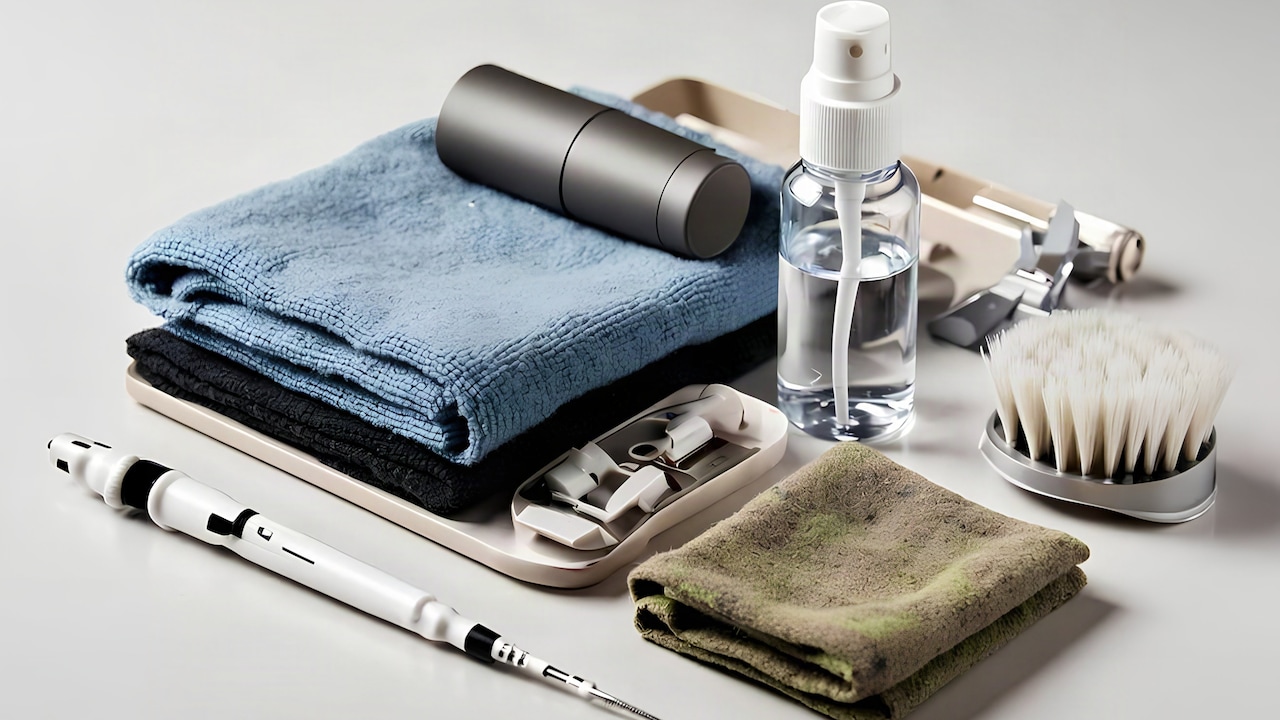
Shut down the laptop and disconnect the charger. Use a clean microfibre cloth that is dry or only slightly dampened with water. Never pour liquid directly onto the touchpad. Avoid harsh household cleaners, sanitiser and glass-cleaning sprays, as they may damage the finish or seep through the edges.
Dry your hands before testing it again. If accuracy improves immediately, the touchpad wasn't failing; it simply needed a proper clean. Sometimes the smallest layer causes the largest amount of frustration.
3. Myth: Touchpad Sensitivity Should Always Be Set To Maximum
Maximum sensitivity sounds like the obvious choice for faster response, but it can create a different set of problems. A highly sensitive touchpad may register a resting palm, the side of a thumb or the lightest accidental brush. The pointer can jump while typing, text may become selected unexpectedly and random clicks may open the wrong window.
Reducing sensitivity too far causes the opposite problem. Taps may need extra force, dragging can feel inconsistent and quick gestures might disappear. The best setting depends on finger pressure, typing style and touchpad size.
Open the touchpad controls and test the available sensitivity levels. Use a document to check whether the pointer moves while your palms rest naturally near the keyboard. Then try tapping, dragging, scrolling and switching between applications.
Palm-rejection software also needs a little time to distinguish deliberate input from accidental contact. Rapidly alternating between typing and swiping may briefly confuse it. A balanced setting usually works better than either extreme. Sensitivity isn't a performance score, so pushing it to maximum won't magically turn an ordinary touchpad into a more accurate one.
4. Myth: Driver Updates Can Never Fix A Physical Input Problem
Drivers act as translators between the touchpad and the operating system. When that translation breaks down, a healthy touchpad can behave as if its hardware has failed. The pointer may lag, gestures can vanish and tap-to-click might stop working after an update.
Check the laptop manufacturer's support page or its official update utility for the correct touchpad, chipset and serial input/output drivers. A generic driver supplied by the operating system may provide basic movement but leave advanced gestures unavailable.
The newest driver isn't always the best answer either. Occasionally, a recent update introduces a compatibility issue. If the trouble began immediately after an update, rolling back to the previous driver may restore normal behaviour. Create a restore point or note the current driver version before making changes.
Avoid downloading drivers from unfamiliar websites promising miraculous repairs. The wrong package can add security risks or make the input problem worse. Drivers cannot repair a cracked mechanism or loose internal cable, but they can resolve many problems that merely resemble hardware damage.
5. Myth: The Operating System Has Nothing To Do With Touchpad Accuracy
The operating system controls far more touchpad behaviour than many users realise. It decides what gestures do, how quickly the pointer moves and whether accidental palm contact gets ignored. Background processes and interface glitches can also delay that interpretation.
Suppose two-finger scrolling works inside a settings window but stutters in a browser with dozens of tabs. The touchpad may be responding correctly while the overloaded application struggles to display movement smoothly. High processor usage, limited memory and a nearly full system drive can make input feel slow across the laptop.
Open the task manager and check whether a programme is consuming an unusual share of memory or processor resources. Close unnecessary tabs and applications, then test the touchpad again. If only one programme causes the problem, update or reinstall that programme before considering a repair.
Accessibility features can also change click timing, drag behaviour and pointer control. Review those settings if the problem appeared unexpectedly. The touchpad provides the signal, but the operating system decides how that signal becomes an action. Sometimes the messenger is fine and the interpreter needs attention.
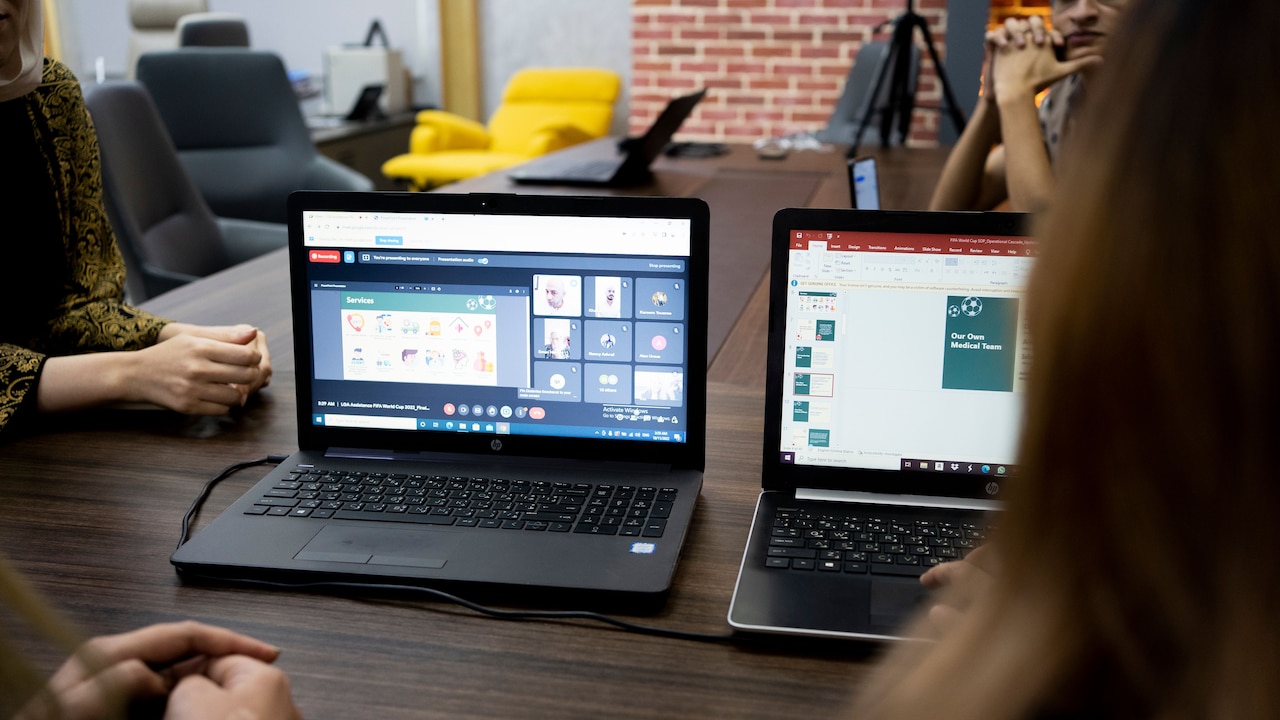
Even the OS of your laptop can affect touchpad accuracy sometimes
Photo Credit: Pexels
6. Myth: Moist Fingers Should Not Affect A Modern Touchpad
Modern touchpads may be sophisticated, but they still struggle with moisture. Sweat, humidity and damp fingertips alter the electrical contact between skin and the capacitive surface. The pointer might shake, scrolling may reverse briefly or a two-finger gesture may register as several separate touches.
This becomes particularly noticeable after carrying a laptop outdoors, working in a room without adequate ventilation or returning from a rushed commute. A cool device can also collect light condensation when moved into a warm, humid space.
Dry both hands and the touchpad with a soft microfibre cloth. Give the laptop a few minutes to adjust to the room before testing it. Don't use a hairdryer or place the device in direct sunlight, as concentrated heat can damage the battery, screen and adhesives.
If moisture frequently causes trouble, keep a small cloth in the laptop sleeve. It's a simple solution, but it can prevent many frantic swipes. Persistent malfunction after the surface is completely dry may point to residue, driver trouble or internal liquid damage that requires professional inspection.
7. Myth: The Charger Cannot Interfere With Pointer Movement
An unsuitable or poorly earthed charger can make a touchpad behave strangely. Users may notice a trembling pointer, missed taps or rough scrolling only while the laptop remains plugged in. Disconnecting the charger suddenly restores smooth control.
Touchpads detect tiny electrical changes, so unstable power or electrical noise can disrupt their readings. This doesn't automatically mean the charger is dangerous, but visible damage, overheating, sparks, buzzing sounds or a tingling metal body should never be ignored.
Test the laptop on battery power. If the touchpad problem disappears, reconnect the charger through another wall socket rather than a loose extension board. Use the manufacturer's original charger or a certified replacement with the correct voltage and wattage. A cheap adaptor bought for ₹500 may cost far more if it harms the charging circuit or battery.
Proper earthing in the building also matters. If several appliances create tingling sensations or input disturbances, consult a qualified electrician. Replacing the touchpad won't solve an electrical problem arriving through the power connection.
8. Myth: Every Gesture Works On Every Laptop And Application
Watching someone glide between virtual desktops with three fingers can create the impression that every laptop should perform the same trick. In reality, gesture support depends on the touchpad hardware, driver, operating system and application.
Older laptops may recognise only pointer movement, clicking and basic two-finger scrolling. Some budget models use smaller touchpads that struggle to separate three or four contact points. Other machines support advanced gestures but require users to enable or customise them first.
Applications can also interpret gestures differently. Pinch-to-zoom might enlarge a photograph in one programme, resize a webpage in another and do nothing in a basic text editor. Browser extensions or application-specific settings may block an action that works elsewhere.
Check the official specifications or touchpad settings to see which gestures the device actually supports. Test the same movement in more than one compatible application. If a gesture has never worked since the laptop was purchased, the feature may simply be unavailable rather than broken. Expectations shaped by another model can make a perfectly functional touchpad seem inadequate.
9. Myth: An External Mouse Proves The Touchpad Has Failed
When an external mouse works and the touchpad doesn't, hardware failure seems like the only explanation. However, connecting a mouse can automatically disable the touchpad on some laptops. A setting designed to prevent accidental cursor movement may remain active even after the mouse gets disconnected.
Look for an option such as “Leave touchpad on when a mouse is connected”. Some manufacturers place this control inside their own utility rather than the main operating-system settings.
Many keyboards also include a touchpad toggle. It may share a function key marked with a small touchpad icon. A rushed attempt to change the screen brightness or volume can disable the input surface without any obvious notification. Pressing the relevant key combination may bring it back instantly.
The external mouse uses a separate driver and input route, so its success only confirms that the operating system can accept pointer input. It doesn't prove that the touchpad hardware has died. Check toggles, settings and device-manager status before visiting a repair shop. The fix might be hiding one key away.
10. Myth: A Swollen Battery Cannot Affect The Touchpad
This myth can become a safety issue. In many slim laptops, the battery sits directly beneath or close to the touchpad. As a damaged battery swells, it can push against the touchpad from below. Clicking may feel stiff, the surface can rise at one edge and gestures may become inconsistent.
Don't press down forcefully to make the click work. Extra pressure could damage the touchpad or worsen stress on the battery. Other warning signs include a bulging base, gaps in the casing, a rocking laptop, unusual heat or rapidly declining battery life.
Shut down the device, disconnect the charger and arrange an inspection through an authorised service centre or reputable technician. Don't puncture, bend or attempt to flatten a swollen battery. Avoid carrying the laptop around unnecessarily until a professional checks it.
A replacement may cost several thousand rupees depending on the model, but delaying the repair creates a larger risk. Unlike a driver glitch or dirty surface, battery swelling won't improve after a restart. Physical changes around the touchpad deserve prompt attention.
Products Related To This Article
1. Acer Nitro V 16S, Intel Core 5-210H Processor
2. ASUS TUF A15, AMD Ryzen 7 170, RTX 3050-4GB
3. Lenovo LOQ 2024, 12th Gen Intel Core i5 12450HX
4. HP Smartchoice Victus, AMD Ryzen 7 7445HS, 6GB RTX 3050
5. Apple 2026 MacBook Pro Laptop with M5 Max chip
6. HP Smartchoice Victus, AMD Ryzen 7 7445HS
7. Lenovo V15 G4 AMD Ryzen 5 7520U 15.6 inch FHD Laptop
A missed swipe doesn't always signal an expensive touchpad failure. Settings, moisture, residue, software conflicts, chargers and disabled gestures can all create similar symptoms. Start with safe checks such as cleaning, restarting and reviewing input preferences. If the surface bulges, develops dead zones or behaves erratically across every programme, seek professional help. Careful troubleshooting can separate a minor annoyance from genuine hardware trouble.
(Disclaimer: This article may include references to or features of products and services made available through affiliate marketing campaigns. NDTV Convergence Limited (“NDTV”) strives to maintain editorial independence while participating in such campaigns. NDTV does not assume responsibility for the performance or claims of any featured products or services.)