Why Your 1080p Webcam Looks Blurry And How To Improve Video Sharpness
A 1080p webcam can still look soft due to poor lighting, weak focus, compression or incorrect settings. Discover 10 common causes of blurry video and practical ways to improve sharpness.
Easy ways to enhance video sharpness in webcams
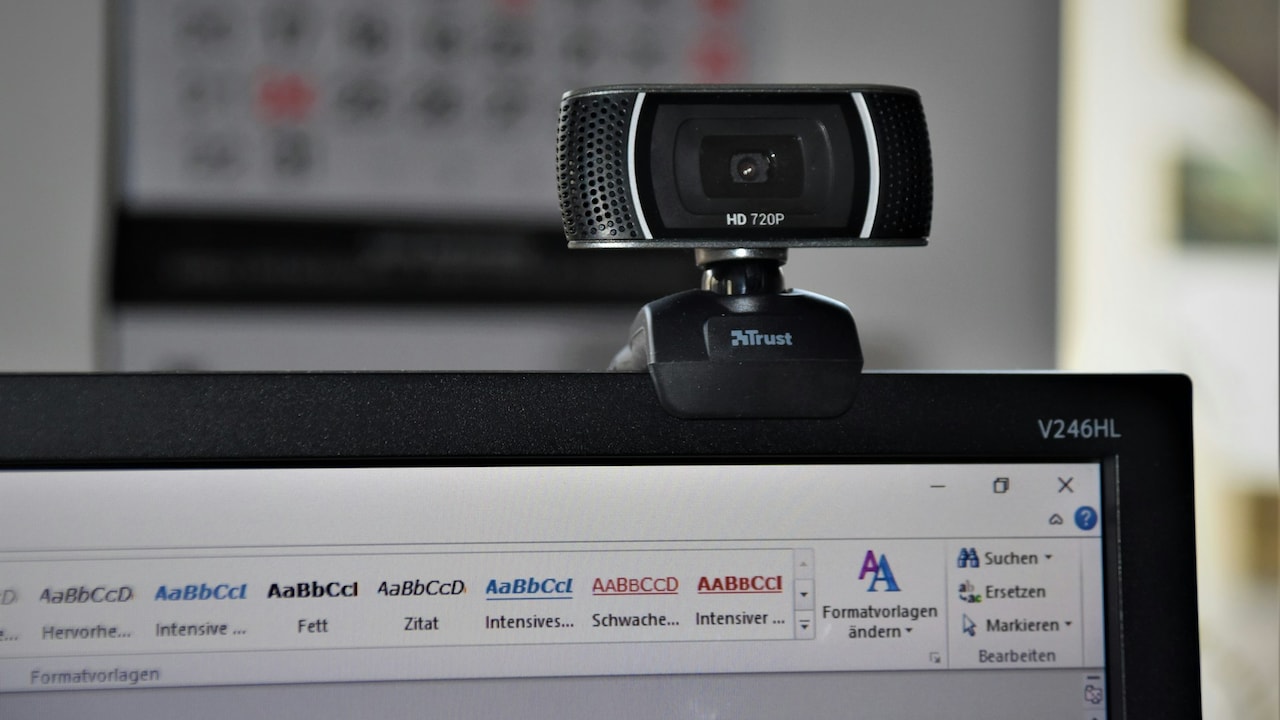
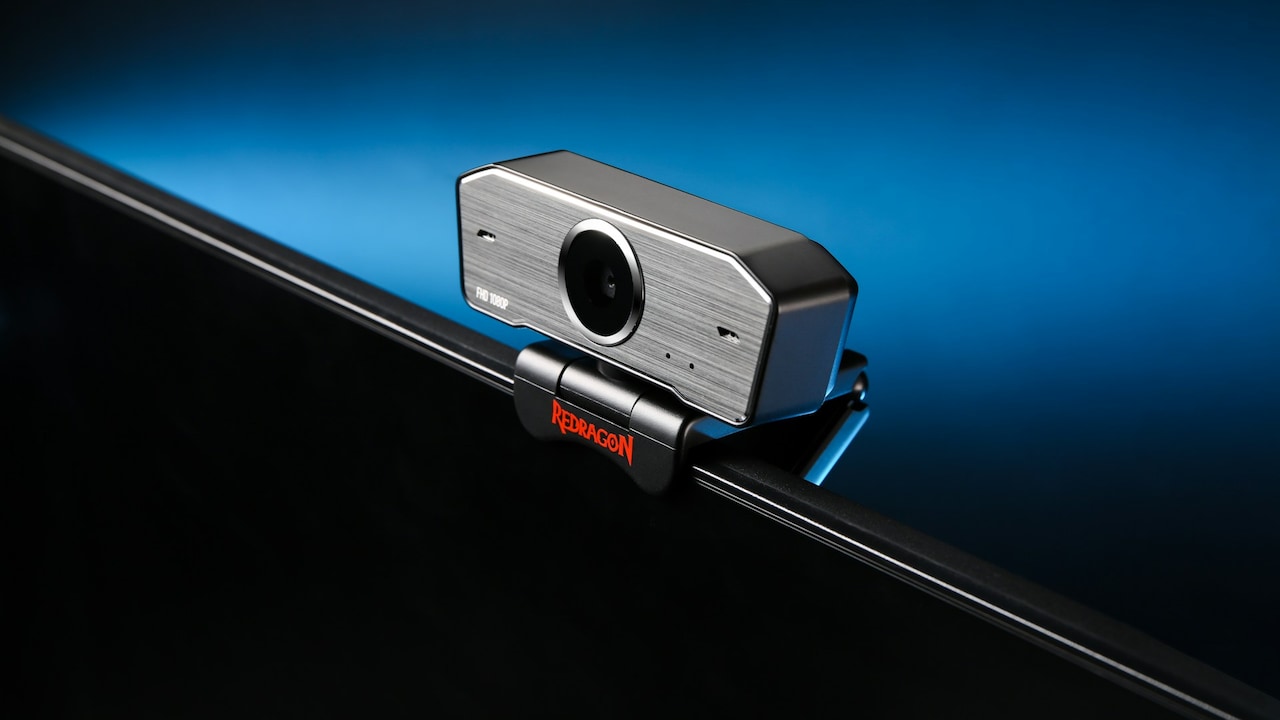
Buying a 1080p webcam should, in theory, end blurry video calls. The box promises Full HD, the specifications look respectable, and the camera might even carry a familiar brand name. Then Monday morning arrives. The meeting opens, the preview appears, and the picture looks as though someone has gently rubbed petroleum jelly across the lens. That does not necessarily mean the webcam is faulty. The term “1080p” mainly describes the number of pixels in the video frame. It does not guarantee that those pixels contain crisp, detailed information. A small sensor struggling in a dim room can produce a 1080p image that looks softer than a well-lit 720p feed. Poor focus, aggressive noise reduction and video-call compression can take away even more detail.
Tips to improve video sharpness in webcams
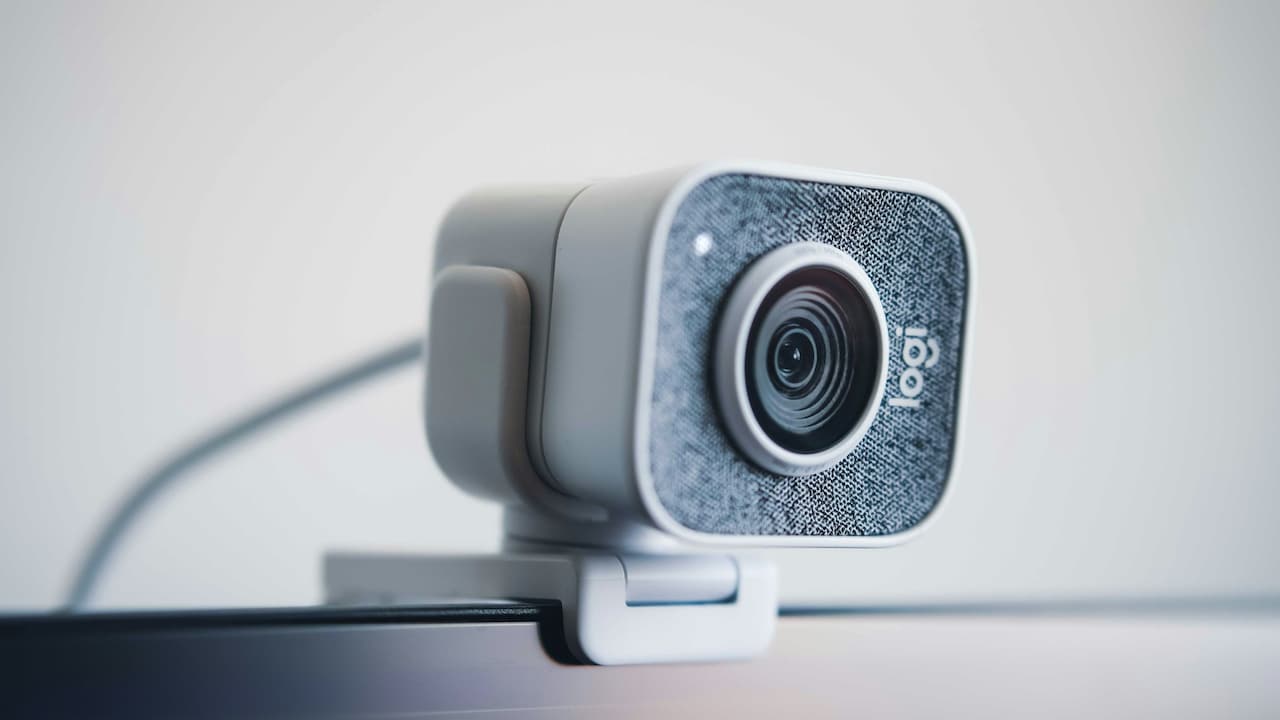
Photo Credit: Unsplash
Fortunately, many softness problems have surprisingly simple fixes. Before placing another webcam in the shopping cart, check these ten common causes.
Also Read: 5 Best Ring Lights Under ₹1000 with Stand for Perfect Zoom Calls And Video Meetings
Why Your 1080p Webcam May Still Look Blurry
1. Poor Lighting Is Forcing The Camera To Sacrifice Detail
Webcams love light far more than most people realise. A room can feel perfectly bright to human eyes while still being gloomy from a tiny camera sensor's perspective. When there is not enough light, the webcam raises its electronic sensitivity to produce a usable image. That introduces noise, and the camera then applies noise reduction to hide the grain. Unfortunately, noise reduction often smooths away fine facial details too.
The result can look clean but oddly waxy. Hair loses definition, beard texture disappears and the edges around spectacles become less distinct.
A simple improvement is to face a bright window during daytime instead of keeping it behind the chair. At night, place a soft lamp slightly above and in front of the face. There is no need to transform the bedroom into a film studio.
Even a modest desk lamp can help if its light is diffused rather than glaring directly into the eyes. Better lighting allows the webcam to use cleaner exposure settings, which usually creates a sharper picture without changing the resolution at all.
2. Autofocus Is Locking Onto The Wrong Thing
Autofocus sounds wonderfully convenient until the camera decides that the bookshelf behind the chair deserves more attention than the person speaking.
Many webcams use contrast-based autofocus systems that constantly search for the clearest area in the frame. Busy backgrounds, patterned curtains, bright posters or frequent movement can confuse them. The camera may shift focus back and forth during a call, making the image appear sharp one moment and slightly fuzzy the next.
Watch the preview carefully. If the face periodically snaps into focus and then becomes soft again, autofocus is a likely suspect.
Webcam software may allow manual focus. Setting a fixed focus distance can work brilliantly when the camera and chair remain in roughly the same positions every day. If manual control is unavailable, simplify the background and ensure the face receives more light than the objects behind it.
Also avoid sitting extremely close to a fixed-focus webcam. Some affordable models have a minimum focusing distance. Moving the camera just 10 or 20 centimetres farther away can suddenly make the picture noticeably clearer.
3. The Lens Is Dirtier Than It Looks
Before changing drivers, reinstalling software or researching ₹15,000 webcams, wipe the lens.
It sounds almost comically basic, yet fingerprints and dust cause a surprising amount of softness. A webcam mounted above a monitor gets touched while adjusting its angle, cleaning the display or moving the laptop. Skin oils can leave a thin film across the lens that scatters light without looking obviously dirty.
This becomes especially noticeable around bright objects. A white wall, window or lamp may develop a slight glow, while the entire frame loses contrast and fine detail.
Use a clean microfibre cloth and gently wipe the lens. Avoid using a shirt sleeve that may contain dust or abrasive particles. If necessary, use a tiny amount of suitable lens-cleaning solution on the cloth rather than pouring liquid directly onto the webcam.
Laptop users should check the camera particularly carefully. The upper edge of the display is regularly touched while opening the lid.
A ten-second clean can sometimes produce a more visible improvement than an hour spent exploring video settings.
4. Digital Zoom Is Throwing Away Useful Pixels
Digital zoom can quietly undermine the benefit of buying a 1080p webcam.
When software digitally zooms into the image, it does not magically give the camera more optical detail. Instead, it crops a smaller section of the sensor and enlarges it to fill the frame. The more aggressive the crop, the fewer original pixels remain. Software then stretches those pixels, which can make faces and text appear softer.
The effect often sneaks in through video-conferencing applications or webcam utilities. Features such as automatic framing, face tracking and artificial pan-and-zoom may crop the image continuously.
Check whether any such option is active. Returning the camera to its native field of view can immediately restore detail.
Physical positioning is usually better than digital enlargement. Move the webcam closer or reposition the monitor instead of using a heavy software zoom. A simple webcam stand or small tripod can help when the built-in monitor position creates an unflattering frame.
It may require slightly more desk rearrangement, but keeping the full sensor image gives the camera far more information to work with.
5. Video Conferencing Apps Are Compressing The Picture
A camera can capture a reasonably sharp image and still look soft by the time colleagues see it.
Video-conferencing platforms compress video heavily because sending pristine 1080p footage from every participant would consume enormous amounts of bandwidth. Compression removes information that algorithms consider less important. Fine textures such as hair, fabric and skin detail are often among the first casualties.
Some platforms also reduce the outgoing resolution automatically when network conditions become unstable. A webcam might technically be recording at 1080p while the meeting software transmits something considerably lower.
Compare the webcam's image in its own camera application with the image inside the meeting platform. If the local preview looks sharp but the call looks soft, compression may be responsible.
Check whether HD video is enabled in the application's settings. Corporate accounts sometimes restrict high-definition streaming, so the option may not always be available.
Remember that the other participant's connection matters too. What appears on their screen can differ significantly from the clean image visible locally.
Certain video conferencing apps can also compress the picture; Photo Credit: Unsplash
6. A Slow Or Unstable Connection Is Reducing Video Quality
Video sharpness is not purely a camera problem. Sometimes the internet connection is quietly making the webcam look guilty.
Video calls require a steady stream of data. When available bandwidth falls, conferencing software usually prioritises keeping the conversation running over maintaining perfect image quality. Resolution drops, compression becomes stronger and motion may look smeared.
This can happen even with a fast broadband plan. A ₹1,000-a-month connection means little if several devices are simultaneously downloading games, streaming 4K video or backing up files to the cloud.
Wi-Fi interference can cause similar trouble. Thick walls, distant routers and crowded wireless channels create fluctuations that video calls dislike.
Where practical, move closer to the router or use a wired Ethernet connection. Pause large downloads and cloud synchronisation during important meetings. Switching from a congested 2.4GHz network to a strong 5GHz connection can also help.
Run the same webcam locally without a call. If recorded footage looks substantially sharper than live meetings, the camera itself may be perfectly capable. The bottleneck could simply be the route between the desk and everyone else's screen.
7. The Webcam Sensor Is Too Small For Difficult Conditions
The 1080p badge says nothing about sensor size, and that distinction matters.
Two webcams can output exactly 1,920 by 1,080 pixels while producing very different image quality. A better sensor captures more useful light and preserves finer detail. A tiny, inexpensive sensor may struggle with shadows, bright windows and indoor lighting even though its output meets the technical definition of Full HD.
This explains why comparing webcams purely by resolution often leads to disappointment. More pixels do not automatically mean more visible detail.
The best response is to give a small sensor favourable conditions. Improve the lighting, reduce strong backlighting and avoid placing the camera in a dark corner. A balanced scene allows the sensor to work within its comfort zone.
If those adjustments still leave the picture consistently soft, hardware limitations may finally be the answer. At that point, upgrading can make sense.
Look beyond the 1080p label when choosing a replacement. Reviews showing real video samples are often more useful than specification sheets. Sensor performance, optics, exposure behaviour and focus reliability matter far more than a large resolution number printed across the packaging.
8. Software Noise Reduction Is Smoothing Away Fine Texture
Modern webcams try very hard to make users look presentable. Occasionally, they try a little too hard.
Noise reduction is designed to remove grain from footage, particularly in low light. The camera or conferencing software identifies tiny variations between neighbouring pixels and smooths them together. Used carefully, this produces a cleaner image. Used aggressively, it turns skin texture, hair and clothing into something resembling a digital watercolour.
Beauty filters can make the effect stronger. Skin smoothing, portrait enhancements and background effects sometimes remain active without being immediately obvious.
Open the webcam's control software and look for settings related to noise reduction, low-light compensation, beauty enhancement or image processing. Turning them down may reveal considerably more detail, although a little extra grain could become visible.
That trade-off is often worthwhile. A slightly noisy picture can appear more naturally sharp than a perfectly smooth one.
Adding more light helps again because the camera no longer needs such aggressive processing. Good lighting gives the software cleaner information from the beginning, leaving less reason for it to blur away the very details that make the image look crisp.
9. The Webcam Is Not Actually Outputting 1080p
Owning a 1080p webcam does not guarantee that every application will use its maximum resolution.
Some software defaults to 720p to reduce processor load and bandwidth usage. Certain webcams may also offer 1080p only at particular frame rates. For example, a model might provide Full HD at 30 frames per second but switch to a lower resolution when 60fps mode is selected.
Operating system settings, browser permissions and capture software can introduce further complications.
Check the video settings inside the application being used. Look for resolution or quality controls rather than assuming automatic mode chooses the highest option. Recording a short local clip can help confirm the actual output.
Content creators using software such as streaming or recording applications should also check the project's canvas and output resolution. Capturing a 1080p camera and then scaling it through multiple software layers can soften the final image.
There is also little value in selecting high frame rates for an ordinary office call if doing so reduces spatial detail. For presentations and meetings, a clean 1080p image at 30fps often looks better than a softer high-frame-rate alternative.
10. The Camera Position Is Making Softness More Noticeable
Sharpness is partly technical and partly perceptual. A poor camera position can exaggerate weaknesses that would otherwise go unnoticed.
Place a webcam too far away and the face occupies only a small portion of the 1080p frame. Meeting software then enlarges that tiny face on another person's display, exposing the limited detail available. Sit excessively close and some webcams struggle to focus properly.
Aim for a comfortable middle distance where the head and shoulders fill a sensible portion of the frame. Keeping the webcam near eye level also helps because the face remains the natural point of attention rather than disappearing into a large background.
Lighting should support that composition. A bright window behind the chair forces the camera to expose for the background, leaving the face dark and noisy. Turning the setup around can make the same webcam look far more expensive.
Small adjustments matter. Raise the laptop on a couple of sturdy books, move the webcam nearer, tidy the visual clutter and bring a lamp forward.
Sometimes “better camera quality” begins with moving things twenty centimetres rather than buying anything at all.
Products Related To This Article
1. Logitech Brio 100 Full HD 1080P Webcam for Meetings and Streaming
2. Lenovo 300 FHD Webcam with Full Stereo Dual Built-in Mics
3. Zebronics FHD USB Webcam, 30FPS, 2P2G Lens, 2.0MP CMOS Sensor
4. EMEET NOVA 4K Webcam for PC - Ultra 4K HD
5. Kreo Owl Full HD 1080P 60 FPS Webcam with Auto-Focus and Built-in Dual Digital Mic
6. LAPCARE Lapcam HD 720M P, Noise Isolated Microphone with Computer
7. PC Webcam with Microphone, HD 1080P Streaming Webcam for PC
A soft-looking 1080p webcam is not automatically a bad webcam. Full HD describes resolution, but sharpness comes from an entire chain of factors: the lens, sensor, focus, lighting, camera distance, processing, software settings, network conditions and compression.
Start with the fixes that cost nothing. Clean the lens, improve the lighting, check focus, disable unnecessary digital zoom and confirm that the software is genuinely using 1080p. Then examine the network and any aggressive image-processing features.
These adjustments can turn an underwhelming webcam into a surprisingly capable one.
If the picture remains muddy even in bright light, at the correct focus distance and during a clean local recording, the hardware may simply have reached its limits. That is the point when an upgrade makes sense.
Until then, there is little reason to blame the number printed on the box. Sometimes Full HD does not need replacing. It simply needs the right conditions to look like Full HD.
(Disclaimer: This article may include references to or features of products and services made available through affiliate marketing campaigns. NDTV Convergence Limited (“NDTV”) strives to maintain editorial independence while participating in such campaigns. NDTV does not assume responsibility for the performance or claims of any featured products or services.)